Sunday, 14 August 2016

PET LCD

This is an old post, preserved for reference.
The products and services mentioned within are no longer available.

This is something I've been working on for a while, and have finally put it all together.
The top half is a 6502 socket (with pass through), a GAL chip, some DIP switches, 32K RAM and a ROM chip with various ROM images on. The RAM and data bus buffer/switch are hidden under the chips. So far it is basically a squashed up version of my 6502 ROM/RAM boards.
The large chip is a 1K dual port RAM chip. That is 1K of RAM which can be independently read and written from two different address and data busses. One side is attached to the PET bus, where it sits at 0x8000-0x8400, the screen RAM. It is configured as write only, so whenever anything is written to the PET screen RAM, it is written to the board, and to this copy of the RAM.  This is the result of writing 0,1,2,3,4 etc. to the video RAM.
The PET video system is a fairly simple character based 40x25 display, you write characters to the 1K screen RAM buffer and they appear on the screen. No pixel based graphics or custom characters can be shown, it is limited to the 256 characters in the PETSCII character set. Well, sort of, there are two character sets, normal and graphics, which can be selected by an IO line which drives an address line on the ROM. It's actually 128 characters, plus those 128 again but inverted.
There is almost an isolation gap between to top and bottom halves of the board, with only power, and reset joining them, Yes, there are a couple of bodge wires, and an annoying bodge resistor. I had one pin pulled low on the schematic that should have been pulled high, so it was attached to the ground plane. I ended up drilling out the pad and wiring the bodge resistor directly to the pin.
The other side of the RAM chip is attached to an ATmega1284P microcontroller running at 20MHz. This is connected via a 3.3V level shift to a 2.2" 240x320 LCD module.
What does all this do then? Well, if you plug this into the CPU socket of a PET, whenever the PET writes to it's video RAM, it will also be written to the dual port RAM chip. The microcontroller is continually polling this RAM via the other port and converts that to a display on the LCD.
You effectively get a copy of what is on the PET screen on the LCD, updating in real time. To generate this, I have converted the PET character ROM into a data array and draw each character pixel by pixel on the display. The 240x320 layout fits well with the 40 character, 25 row display, each character is 8x8, so 40x8 = 320, 25x8=200, with 20 pixels space top and bottom. This gives a very clear, pixel perfect version of the screen.
 In business graphics mode, the PET introduced two pixels gap between the lines, so this can be fitted in to 225 pixels. I've fixed it in the graphics character set for the moment, as it needs to tap off a one of the pins on the VIA line to change font, I'll be adding that to a later revision, probably by duplicating the port with a single 8 bit register or even just a single flip flop.
This opens up a lot of interesting potential. This is really proof of concept stage. The initial idea was this would be a diagnostics tool. You can plug this into any PET and see if it is running, even if the video output on the PET itself isn't working, as long as it is writing to screen RAM, this will show the state of the system.
It can also be used in conjunction with my 6502 diagnostics board, and will show the results of ROM and RAM testing on it's LCD. So even if the ROM, RAM and video display are all faulty, it should be possible to diagnose this and fix it bit by bit.
Since this is a 40 column display, it's also a potential way to add a 40 column display (albeit a small one) onto an 80 column PET. The board has various ROM sets on there, so the 40 column editor ROM can be selected and the PET will run in 40 column mode. The actual monitor will show the wrong thing, but the LCD will show the correct output.
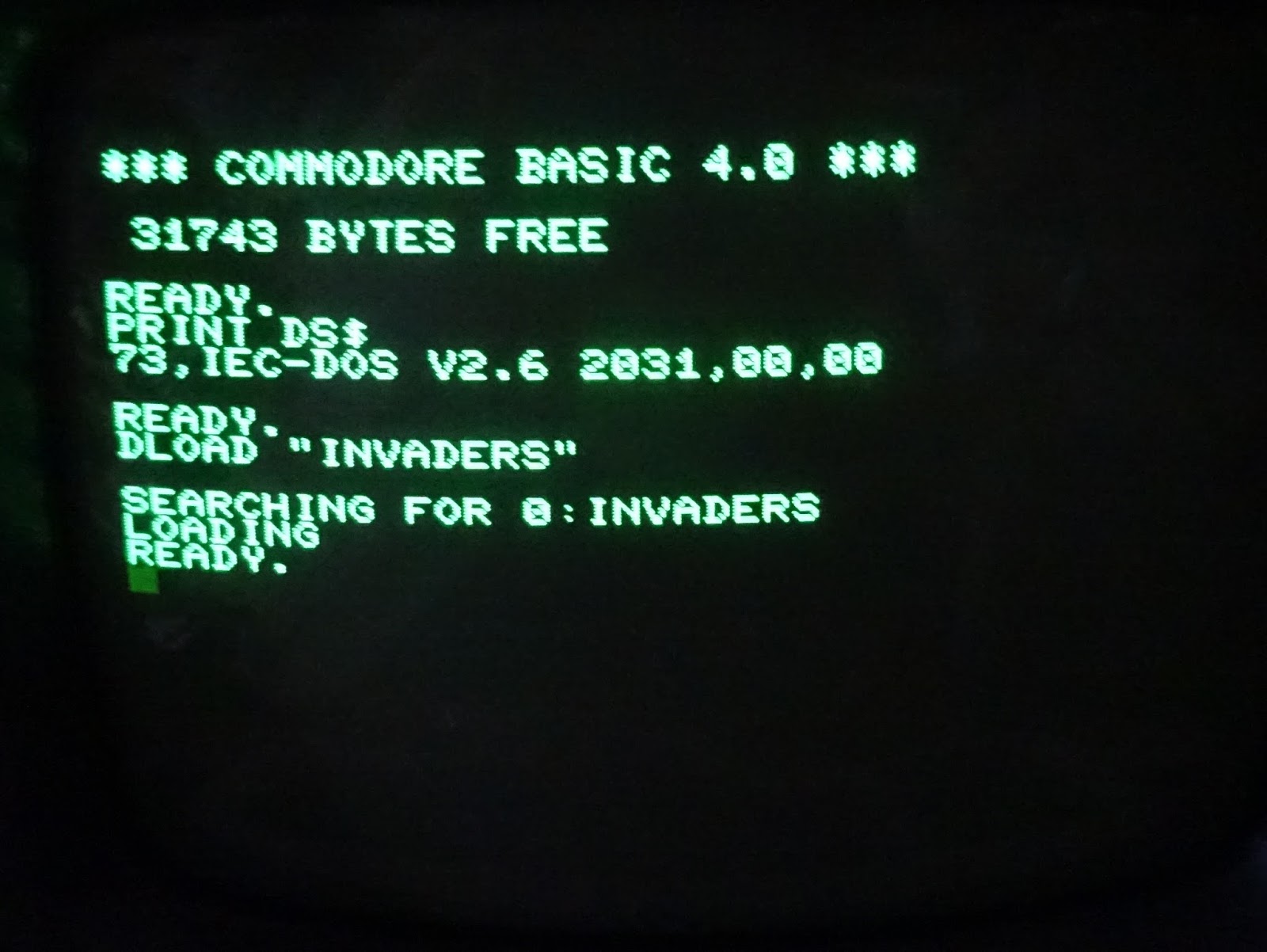
The update rate is reasonable, fast enough to play space invaders anyway. I tried a few demos, and they all ran OK. This is just the first testing, I imagine I can streamline the code to make updating a bit faster.
Another thing to consider is now that I have a way of collecting the screen data, it could be used to drive something larger than this LCD. It could instead be sent to an HDMI monitor or even generate a video signal for the PET monitor or a composite output, although I think I would need an external shift register to handle the pixel clock rate. Driving the PET monitor add the option of letting you switch between 40 and 80 columns on an 8032, which would be very useful to expand the range of available software. Lots of potential though.
One final thought, this is a 6502 CPU, ROM, RAM and a display. Stick in clock, reset and some IO, and you've got yourself an SBC. Add the appropriate ROMs and IO and you've got yourself a mini PET........

2022 Update: A Mini PET? That's an interesting idea. An idea that later became a kit and now a preessembled replacement board. Both available from The Future Was 8 bit.

Thursday, 4 August 2016

VIC20 Penultimate Cartridge User Guide

Congratulations on purchasing your new VIC20 Penultimate Cartridge! This is the point where people normally stop reading the instructions. You can stop if you like, it should be reasonably intuitive to use so you shouldn't need instructions. But read on, there are a few hints and tips that may be useful.

These instructions relate the firmware revision 5.x on the menu driven carts. Those with version 4.x firmware can get updates, contact me for more information. The cartridge PCB can be used as is, or can be fitted in the shell of an old cartridge.

The section at the top sticks out of the slot at the top of the case to allow you to access the menu button when it is closed.

There will be a fully cased version available soon with a custom injection moulded cartridge case from The Future Was 8 Bit.

Step 1, install the cartridge. Should be obvious, but the VIC20 should be turned off first, and the cartridge inserted with the label facing upwards. With the PCB version, it should be located centrally in the edge connector.

With the cartridge installed, power up the VIC20. You should see the first page of the menu. If not, check the cartridge is properly installed.

From this page you can do many things. You can get back to this page at any time by pressing the menu button on the left hand side of the cartridge. If you have a reset button on the right, this will reset the VIC20 and restart the current selection or exit to BASIC. Use the menu button to get back to this screen.

You can use the joystick to navigate the list of ROM cartridge images. As soon as you move the joystick, one of the titles will be highlighted. Up and down scroll through the list, left and right change page. Once you find the one you want and click fire. The cartridge ROM will be switched in and the game should immediately start.

Some VIC20 cartridges will start offset to the left on PAL machines, this is normal and how the originals behave.

Many of these cartridges let you use the arrow keys or joystick to centre the screen.

When you are finished with a game, press the menu button on the cartridge to get back to the menu.

You can also use the arrow keys or < and > to scroll through the pages of ROM cartridge images. To load a cartridge, press the number highlighted in white.

For example, Omage Race is 23, with the 3 highlighted, so press 3 to start Omega Race.

That ROM will be switched in and the game should immediately start.

The forth page contains some text adventure games. These used to require the user to type 'SYS 32592' to start, this is now automated, so just press the number and the adventure will begin.

The fifth page contains some utility ROMs. The VICKIT 4+5 option is a tape speed loader and assembly language monitor.

BASIC 4 is an update to VIC20 BASIC 2 which adds disk handling commands such as DIRECTORY and DLOAD found on the PET and Plus/4 etc. Note when this is selected, block 5 is used by the BASIC 4 ROM, so is not available. There are two unlisted shortcut keys here, from any screen, press V to start VICKIT 4+5 + 27K RAM, or B to start BASIC 4 + 27K RAM.

Super Expander is provided with the original 3K option, or the maximum 27K available.

As well as the ROM cartridge images, there are a series of direct start options, as follows:

  • f1 - Exit to BASIC with 0K expanded memory
  • f2 - Exit to BASIC with 3K expanded memory (block 0)
  • f3 - Exit to BASIC with 32K expanded memory (blocks 1,2,3 and 5)
  • f4 - Exit to BASIC with 8K expanded memory (block 1)
  • f5 - Exit to BASIC with 35K expanded memory (blocks 0, 1, 2, 3 and 5)
  • f6 - Exit to BASIC with 24K expanded memory (blocks 1, 2 and 3)
  • f7 - Exit to BASIC with 35K expanded  memory and start the SD2IEC file browser
  • f8 - Exit to BASIC with 35K expanded  memory and start the default program from disk

The default program is the first file on the disk, the one which would be loaded with LOAD "*",8. The last two options load from drive 8 by default, but you can press D on the menu screen to cycle through 8-11 if you don't want to start from drive 8.

When selecting RAM in block 5, it will be cleared before the VIC is started. This is to remove any auto-start cartridge images that may have been copied there on previous sessions.

From the main menu, you can also press A which will switch to the advanced menu.

Here you can select from various combinations and RAM using the number keys 1-8, then press f1 to exit to BASIC, f3 to lauch the SD2IEC file browser and f5 to load the default program from disk. If you have a Jiffy DOS ROM installed in your VIC20, that will speed up access to loading from disk.

It is possible to create you own ROM image for the Penultimate Cartridge if you want to change the selection of cartridges or add your own. I will provide full instructions on that later if there is any interest.

If you have got this far and haven't ordered your Penultimate Cartridge yet, go and preorder one now. Or if you prefer, buy an uncased version now.

UPDATE:

The first run of cased cartridges is now here, more photos of those and the test program.

Penultimate Update:

The production version of the Penultimate Cartridge is now available from The Future Was 8 bit

Monday, 1 August 2016

Commodore 1541 disk drive to 2031 conversion

When I was finishing off the restoration of my first PET, I didn't have much luck with IEEE-488 drives for it. This was before the PET microSD, and I didn't have a disk drive I could get working with the PET. Before I go any further, here's a quick recap on Commodore disk drives and formats:

ModelDrivesSidesMedia DensityCapacityConnection
2040/3040/4040Dual DriveSingle SidedSingle Density170KIEEE-488
2031/2031LPSingle DriveSingle SidedSingle Density170KIEEE-488
8050Dual DriveSingle SidedQuad Density521KIEEE-488
8250/8250LPDual DriveDouble SidedQuad Density1042KIEEE-488
SFD-1001Single DriveDouble SidedQuad Density1042KIEEE-488
1540/1541/1541IISingle DriveSingle SidedSingle Density170KIEC
1570Single DriveSingle SidedSingle Density170KIEC
1571Single DriveDouble SidedSingle Density340KIEC

As you can see, quite a variety of single and double drive, single and double sided, single and quad density. Drives with the same capacity were generally compatible with each other for reading, but not writing. Double sided drives could read single sided disks, but you still had to flip them over if you had used both sides in a single sided drive. So it's often difficult to work out what drive a disk was written in. When I was looking for a working drive for my PET, I found a scan of a German Commodore 64 magazine from the 1980s which had an article about converting a 1541 disk drive into a 2031 clone. (Update, it was 64'er magazine, see the last entry on this page at zimmers.net)  Narrowing it down, you can see the 2031 and 1541 have similar specifications, other than the connection type.

DriveNo. DrivesNo. SidesMedia DensityCapacityConnection
2031Single DriveSingle SidedSingle Density170KIEEE-488
1541Single DriveSingle SidedSingle Density170KIEC

The 2031 used parallel IEEE-488, the 1541 used the serial version of the same protocol. 1541's were the most common disk drive used with the Commodore 64, and VIC20, so there are a lot of them around, unlike the 2031 and the other IEEE-488 drives. The 2031 originally came in a large black metal case, using the same drive mechanisms as the 4040 drives. Later the 2031-LP was produced, using the case and drive mechanism from a 1541. Since the schematics of the 1541 and 2031-LP were very similar, the idea was to take a 1541 drive and modify it to match the 2031-LP schematic. The ROM would be replaced with the 2031 ROM (actually a patched ROM to make the 1541 act like a 2031). All the changes were to the IO pins of one of the 6522 chips, so this could be achieved with an add on board which connected one of the 6522's to some IEEE-488 buffers rather than the IEC ports on the drive.

I built this up on a bit of pad board and it sort of worked. The problems I now know were two fold. Firstly, I didn't want to mess up a good drive, so I had started with a 1541 which wasn't working properly in IEC mode, and unsurprisingly, it didn't work too well in IEEE-488 mode. Secondly, there were problems with the IEEE-488 port on both the PETs I was using at the time. Hence the confusion. I later reverted that drive back to IEC mode and fixed the problems with it, but by then I'd built the first version of the PET microSD disk drive replacements and fixed the IEEE-488 ports on my PETs, so I didn't need the drive.

I've decided to revisit this and see if I can get it working, this time starting with a 1541 drive I have already repaired first. It's made up of bits of several drives, but is working via IEC.

The first task is to replace the ROM. I've used an adaptor board and a 2764 EPROM to replace the original 8K mask ROM. There should be just enough space for it.

The second part is the interface board. This time I designed a PCB. It plugs into the 6522 socket, and the 6522 chip plugs into the board. The data and control lines pass through, but most of the I/O pins are not connected to the 1541 board. They are wired to a set of 75160 and 75161 IEEE-488 buffers to drive the IEEE-488 bus.

I used the same connection as my first attempt, a 24 pin IDC header and IDC 24 way GPIB connector. This extends over the neighbouring chips, so is raised up on an additional IC socket.

It's tight, but it all fits in place. The jumpers are for drive ID selection, both on for 8, right only for 9, left only for 10, both off for 11.

When I built the first version, I had started with a case that had arrived with some holes drilled into it presumably from drive ID or ROM switches, so didn't mind modifying it further to add the IEEE-488 Connector. I may fit switches for drive ID into the holes in the case at some point, but they are badly position if you want to stack things.

The original 1541 drive had two holes for two 6 pin DIN IEC connectors, which lined up with sockets on the PCB.

I filed these out to be able to fit the new connector.

The two DIN connectors on the 1541 board need to be desoldered to leave space for the GPIB connector, the cable runs over the top of the capacitor.

That all fits back together neatly.

OK, time to test it out. The drive powers on, the disk spins and the red light goes out. Good start. Lets see what the PET says.

Marvellous, seems to be alive. I found a 2031 test program in the PET archives, so gave that a go.

After lots of activity, that also passed, so it looks like it's working. Like the IEC bus, these devices are designed to be chained together, I can use this to transfer from disk to disk. I've tried reading and writing disks and disks full of content to the drive, and all seems to be working.

It's quite a neat modification inside as well. Note, this board is only suitable for the 'medium size' 1541 boards, such as the one I used. It will not fit the later very short boards, or the original long boards.

The original 2031LP would have had a PCB mount GPIB connector, and some additional filtering on the signal lines but this does the job quite neatly. (Update: here's a galley of nice pictures of a real 2031LP from xAD nIGHTFALL) Just needs a label for the front. I was going to copy a 2031LP label, but the drive cases I used has the embossed C= logo, so it wouldn't fit.

I can now use this to read disks from 2040, 3040, 4040, 2031 and 4031 disk drives, and the 8250 below can deal with the 8050, 8250 and 8296D disks. Now all I need is one of the 8060 series 8 inch drives.

The PCBs are available from my Tindie store. The most difficult parts to locate are the IEEE-488 connections. You can try to find something similar to the arrangement I used above, or solder a cable directly and run a long lead to an edge connector on the PET.


2023 Update

The PCBs are now available from my SellMyRetro store - https://www.sellmyretro.com/offer/details/61998


Patreon

You can support me via Patreon, and get access to advance previews of posts like this and behind the scenes updates. These are often in more detail than I can fit in here. This also includes access to my Patreon only Discord server for even more regular updates.

https://www.patreon.com/tynemouthsoftware